THE NEW MENU
Good food.
No guesswork.
Browse real dishes in interactive 3D and AR. See the details, explore every angle, and choose with confidence.
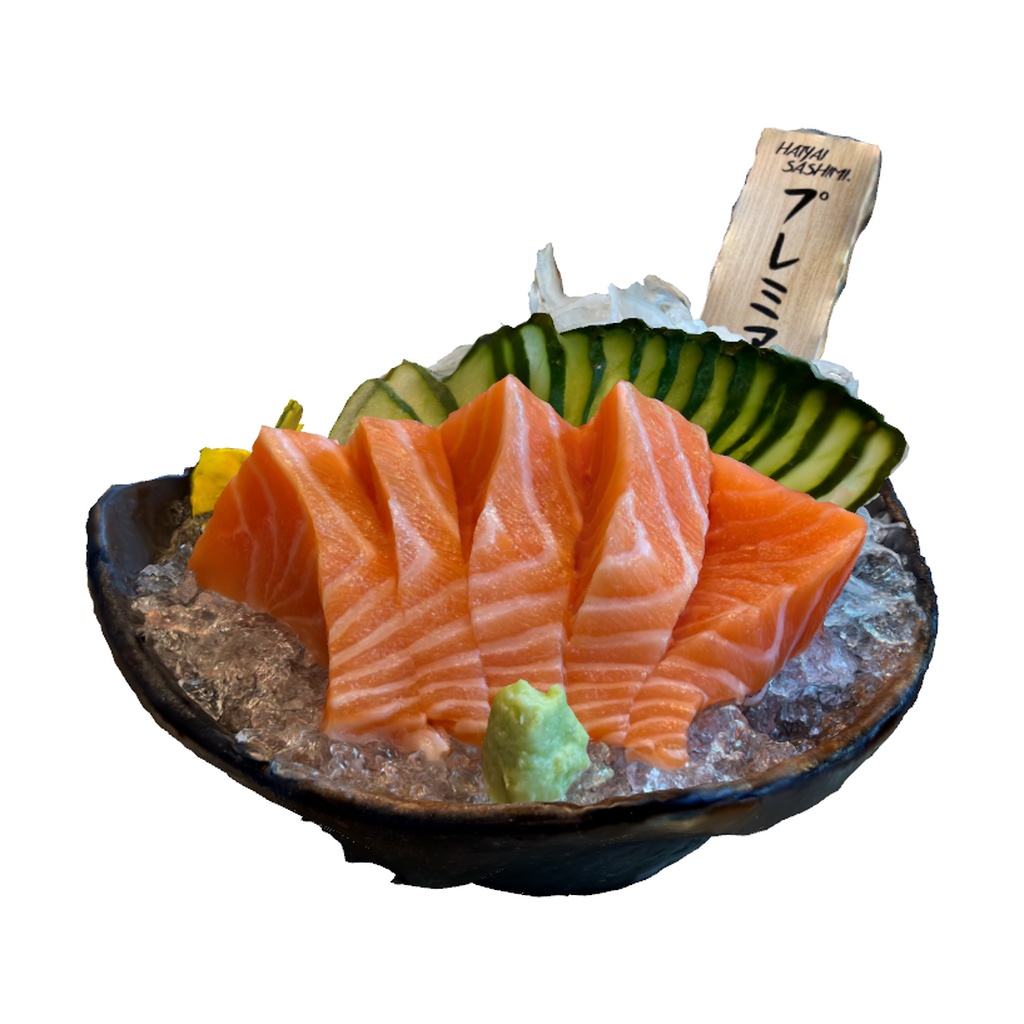
Loading your first dish…
Salmon Sashimi
See the arrangement,
up close and in 3D.
 Drag to rotate
 Scroll or pinch to zoom
RESTAURANT PILOT
Your food deserves
a better menu.
A short description and an old photo can only say so much. Give guests a closer look at the dishes you create.
We’re looking for our first restaurant partners to shape the SeeFood pilot.
Join the pilot
JOIN THE RESTAURANT PILOT
Your restaurant,
a whole new view.
Let guests explore your dishes in 3D. Tell us about your restaurant and we’ll get in touch to discuss the pilot.
No payment or commitment required to request a place. We’ll discuss availability and pilot terms with you.
REQUEST RECEIVED
Thanks for the introduction.
A request doesn’t confirm participation. We’ll discuss the next steps with you.
FROM SCREEN TO TABLE
A closer look.
Before the first bite.
- 01
Find your angle.
Drag a real 3D scan to rotate it. Pinch or scroll for a closer look.
- 02
Make room on your table.
On iPhone, open this site in Safari and tap “On my table” to use Apple’s AR viewer.
- 03
See it in your space.
Move your phone slowly over a well-lit table. Use the AR tab and drag to adjust.
These sample models illustrate presentation, not measured portions. Actual servings, ingredients, and allergens need restaurant confirmation.
ABOUT SEEFOOD
A clearer view.
A more informed choice.
Francisco Barrios
Founder & CEO
I’m building SeeFood to help diners explore dishes in 3D before they order. Good food deserves more than a short description or an outdated photo.
Contact FranciscoA few things to know.
Can I order these dishes?
This is a demonstration of three sample menus. Real orders and payments are not enabled yet.
Do I need the app?
No. Interactive 3D works in your browser. On iPhone and iPad, Safari opens Apple AR Quick Look. Apple controls its AR gestures; they differ from the SeeFood app. Supported WebXR browsers offer tap-to-place and tap-to-lock.
Are these actual dish scans?
Yes. These are web versions of the 21 selected USDZ scans. AR uses the original USDZ files. If 3D cannot load, you can still view the dish photo and try AR.
Where are my saved dishes stored?
Only in this browser on this device. Saved dishes are not sent to a server.